🎓 Result Sending Software
For Schools & Academies

School Results, Delivered to Every Parent in One Click

Teachers enter marks once. Result cards reach every parent via WhatsApp, SMS and app, no printing, no paper slips, no students "forgetting" to deliver them. This complete guide walks you through everything, from login to the parent's phone.

Video guide

Watch the Complete 11-Chapter Video Guide

Prefer video? Watch every chapter in under 3 minutes, from login to the parent portal.

Guide contents

Everything in This Guide

Thirteen short chapters, each one numbered steps with screenshots. Start at the top, or jump to what you need:

  1. Login, Staff & Parent Accounts
  2. School Info, One-Time Setup
  3. Add Classes
  4. Add Students
  5. Results Entry, Exams, Subjects & Marks
  6. Send Results to Parents, 8 Channels
  7. Results Record, Gazette & Analysis
  8. Parent Accounts
  9. Teacher Accounts & Permissions
  10. Offline Mode
  11. The Parent Portal
  12. Install on Mobile, Add to Home Screen
  13. FAQ & Troubleshooting
Chapter 1

Login - Staff & Parent Accounts

There are two separate sign-in pages: one for school staff, one for parents.

Staff login (admins & teachers)

Open the staff sign-in page. Go to result-sending-software.pages.dev/login in any browser, it works on phones, tablets and computers.

Enter your email and password. Your school admin gives you these when your account is created. Admins receive their account from us when the school joins; teachers receive theirs from their school admin.

Sign in. You land on your dashboard. Admins see Classes, Students, Results Entry, Results Record, Parent Accounts and Teacher Accounts. Teachers see only the pages their admin has enabled for them.

1

Staff Sign-In Page

Staff open /login and sign in with the email and password their school admin gave them, on a phone, tablet or computer.
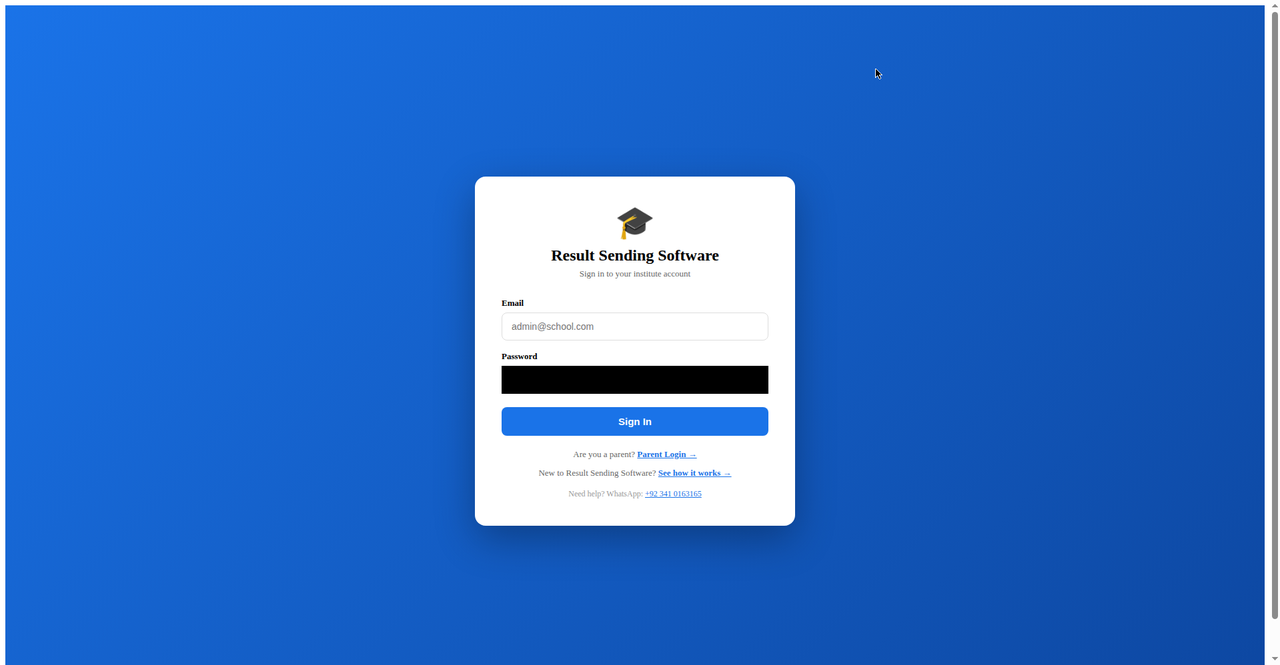
Staff sign-in page of Result Sending Software
Staff sign-in, email and password, works on any device.

Parent login

Open the parent sign-in page. Go to result-sending-software.pages.dev/parent-login.

Enter your parent email and password. A parent account is created automatically the moment your child is added as a student, the school shares your login details with you on WhatsApp. You never sign yourself up.

Sign in. You see only your own child's published results, never any other child's marks.

1

Parent Sign-In Page

Parents open the separate /parent-login page, it shows only their own child's results, never any class list.
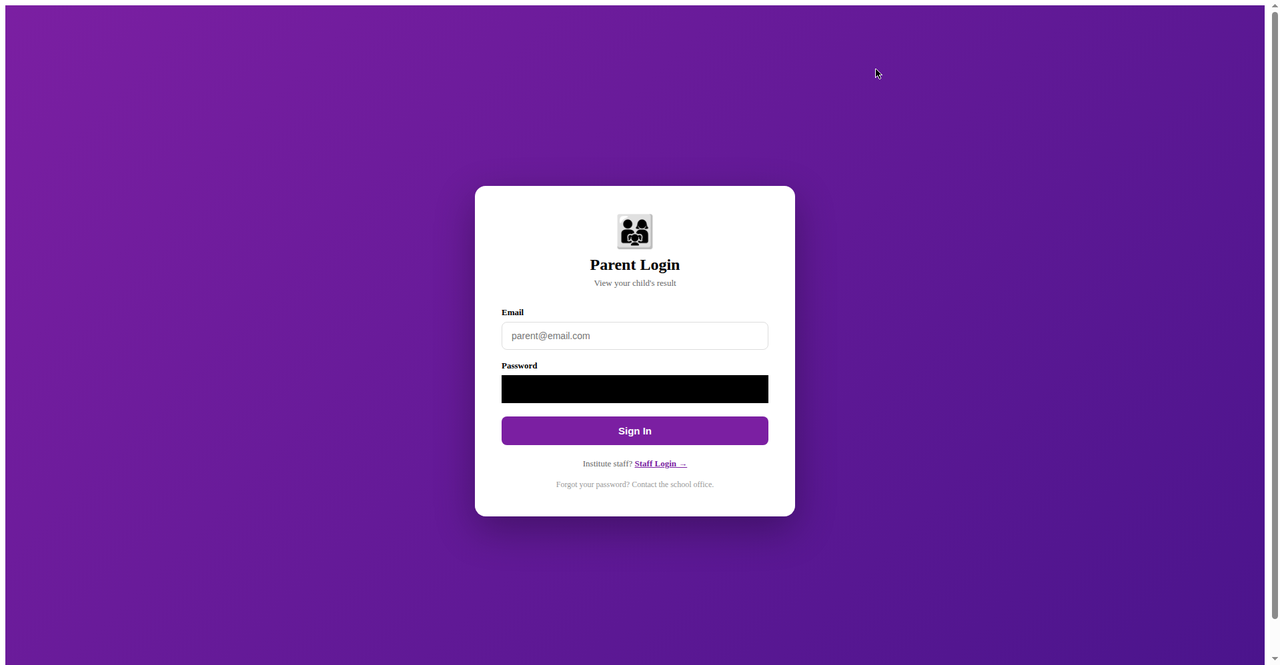
Parent sign-in page of Result Sending Software
Parent sign-in, separate from staff login, private to each family.

Locked out? Staff and teachers ask their school admin to reset the password; parents are reset from Parent Accounts; a school admin's own password can be reset by us over WhatsApp.
Chapter 2

School Info - One-Time Setup

When your school joins, its details are registered once. They print on every result card and gazette, so they should be correct.

Receive your admin account. When your school signs up, we create your school's profile and give you an admin login (email + password). Your school name is set on that profile.

Sign in and check a result card. Open any published result card (or the sample in the demo) and confirm your school name appears correctly at the top.

Need a correction? If the school name, contact number or any printed detail needs changing, message us on WhatsApp at +92 341 0163165 and we update it for you.

Tip: every login also has a 📖 How to Use button at the top of the screen that opens this complete guide.

Chapter 3

Add Classes

Classes are the folders everything else hangs on: students, exams, marks and reports are all organized by class.

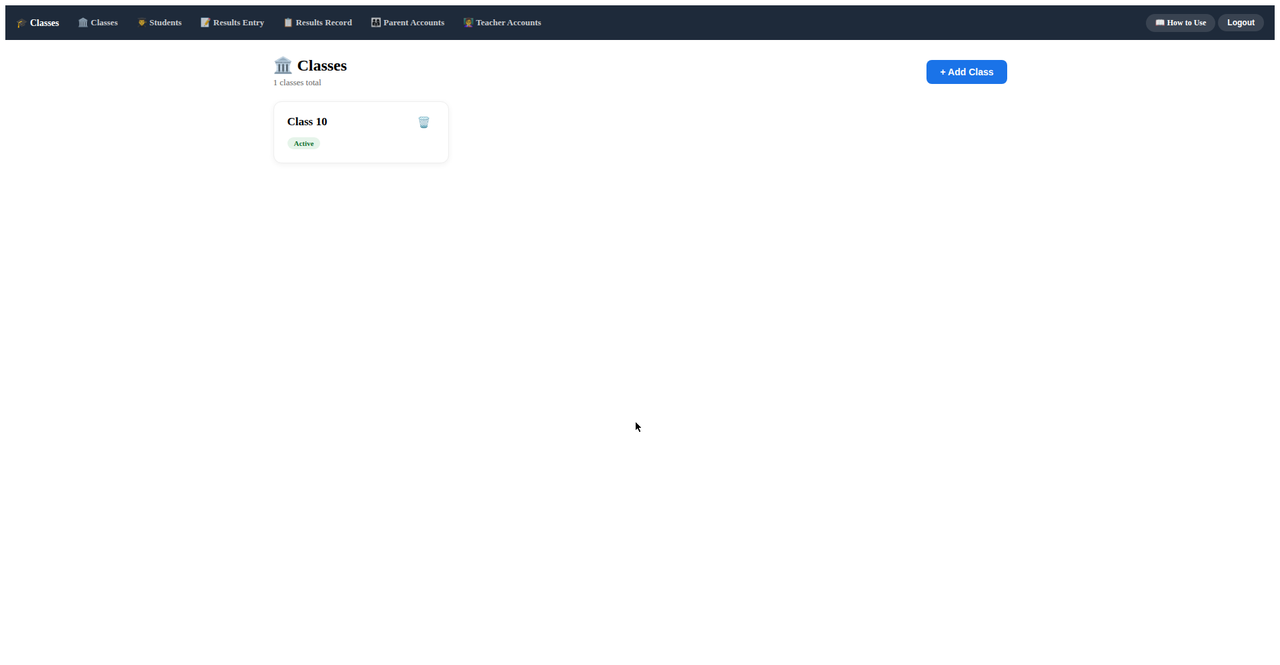
Open Classes. Sign in as admin and tap Classes in the navigation menu.

Add a class. Enter the class name (for example "Class 10"), add a section in brackets if you need one (for example "Class 10 (A)"). Save it.

Repeat for every class and section. Your school will typically add all classes in one sitting, once.

Edit or delete any time. Made a typo? Use the edit option on any class. Deleting a class also removes its students' linked data, so double-check first.

3

Classes Page

Every class is a card, add, edit or delete classes and sections from one simple page.

Classes page showing a class card in Result Sending Software
Classes page, add a class once, then use it for students, exams and reports.
Chapter 4

Add Students

Four ways to manage students, add them one by one, import the whole school from a spreadsheet, export backups, and clean up duplicates.

4

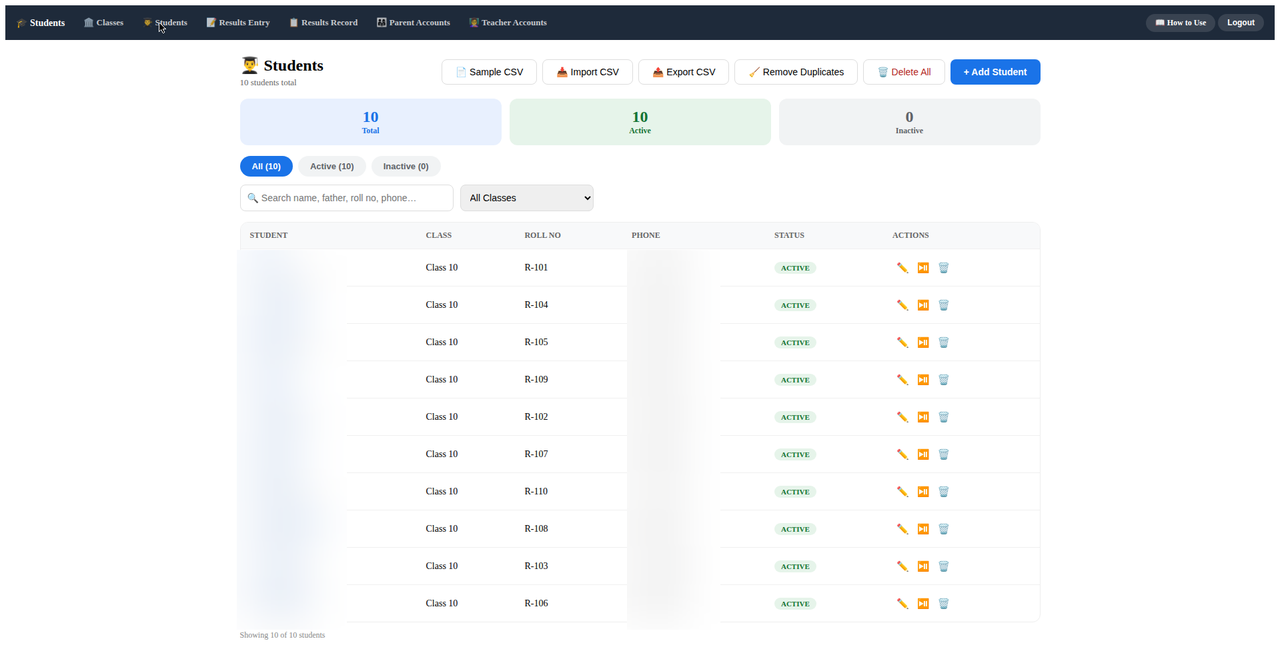
Students Page

All students live on the Students page, add, search, edit and manage them class-wise.

A parent account is created automatically for every student (see Chapter 8), so parents can log in from day one.

Students list page in Result Sending Software
Students page, import, search, and manage every student. (Demo data shown, names hidden.)

Add one student

Open Students and add. Sign in as admin, open Students, and choose the add-student option.

Fill the required fields. Father Name and the parent's WhatsApp number are mandatory, the system will not save the student without them.

Save. A one-time popup shows the new parent login (email + password). Share it with the parent on WhatsApp using the built-in share button, it appears only once, so send it now.

Bulk CSV import (whole school in minutes)

Download the sample CSV. On the Students page, download the sample file to see the exact column order: student name, father name, WhatsApp number, phone, roll number, class name, gender, email, address.

Fill your file. One row per student, matching the same columns. Missing classes are created automatically, write "Class 10 (A)" to split name and section.

Import. Upload the file. Rows already in the system are skipped (no duplicates from the import itself), parent accounts are created for every new student, and you get a row-by-row error report for anything that could not be imported.

Export & clean up

Export All CSV. Download every student record any time as a CSV, your complete backup.

Remove Duplicates. If the same student was entered twice, run Remove Duplicates: it shows a dry run first, then keeps the earliest record, moves the marks over, removes the extra parent account, and writes an audit entry. Confirm before it runs.

Chapter 5

Results Entry - Exams, Subjects & Marks

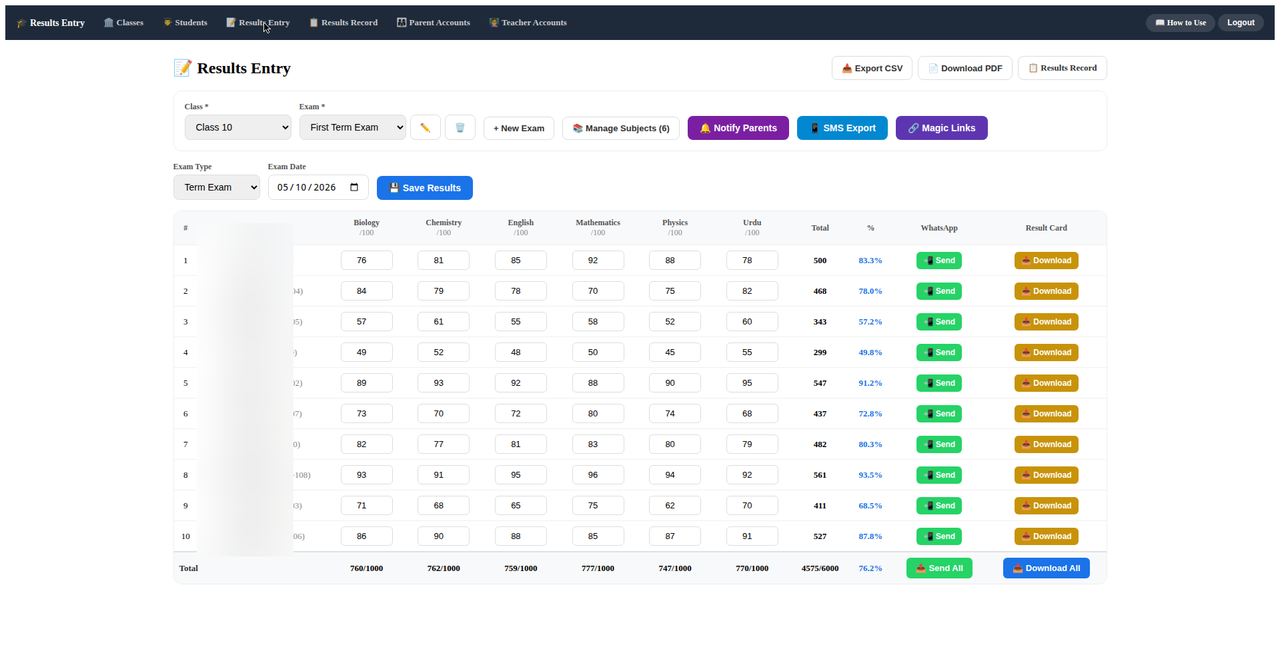
This is the core workflow: create an exam, set its subjects, pick a class, type marks, save. Totals, percentages and grades calculate themselves.

5

The Marks Grid

Teachers pick a class and exam, then type marks directly into the grid. Totals and percentages calculate automatically as they type.

Mark a student A for absent, it counts as zero in the total.

Results entry marks grid in Result Sending Software
Results Entry, marks typed once; totals and percentages auto-calculated. (Demo data shown, names hidden.)

Create an exam & set its subjects

Create the exam. On the Results Entry page, create a new exam for the class, for example "First Term Exam" or "Weekly Test".

Open Manage Subjects. Every exam owns its own subjects and max marks, set Biology, Chemistry, English, Mathematics, Physics and Urdu (or your own list), each with its maximum marks.

Know that exams are independent. Editing one exam's subjects never touches another exam, each exam keeps its own setup.

Enter & save marks

Select the class and exam. The marks grid opens, listing every student of that class with the exam's subjects as columns.

Type the marks. Enter each student's subject marks. Totals, percentages and grades (90+ A+, 80+ A, 70+ B, 60+ C, 40+ D, below 40 F) calculate automatically.

Save. Save the marks. Saved marks are ready for review and for sending to parents, and the same page's action buttons deliver them through any of the 8 channels below.

Chapter 6

Send Results to Parents - 8 Channels

From the Results Entry page, after saving marks, the action buttons deliver results the way each parent actually reads them. Every channel is private: no parent ever sees another child's marks.

6

The Result Card

Every channel delivers a beautiful result card, subject-wise marks, total, percentage and grade, with the child's and father's names on it.

Parents receive it directly, or open it any time in the parent portal (Chapter 11).

Student result card in Result Sending Software
Result card, subject-wise marks, total, percentage and grade, ready to share. (Demo data shown, names hidden.)
6

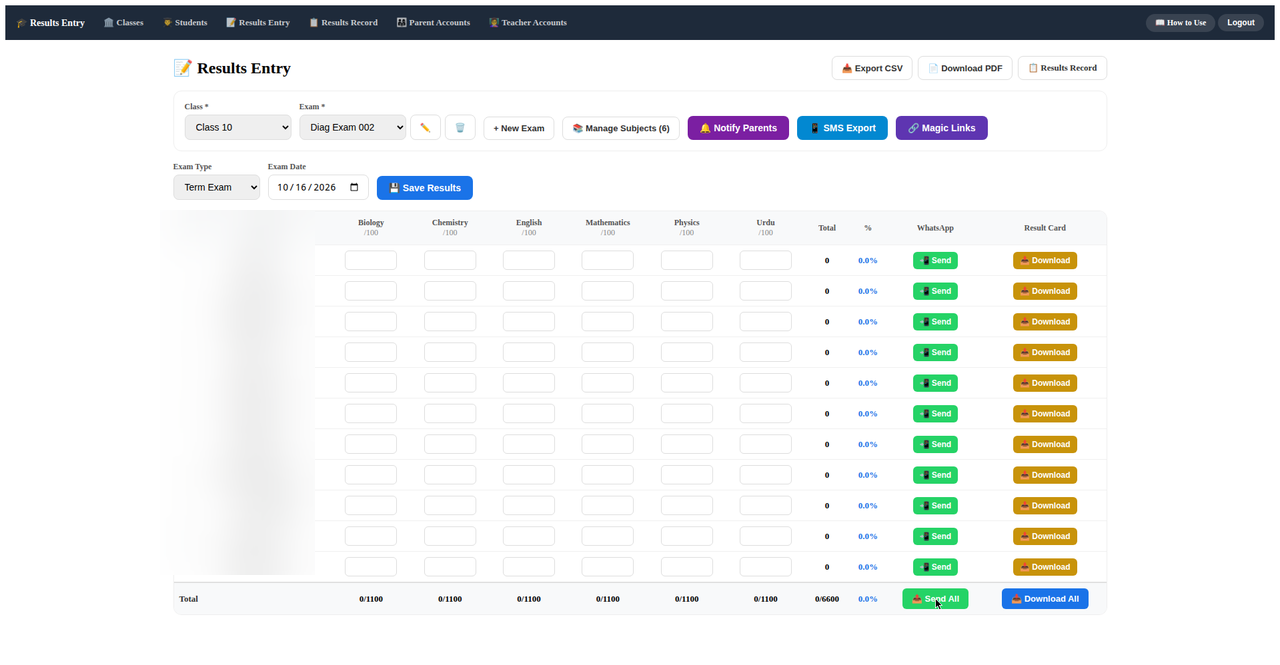
Send Buttons & Send All

Every student row has its own WhatsApp send button and a result-card download, or hit Send All to deliver the whole class, one chat at a time.

Results entry grid with per-student WhatsApp send buttons and Send All in Result Sending Software
One tap per student, or Send All for the whole class. (Demo data shown, names hidden.)

1. WhatsApp - one student

Find the student. On the Results Entry page, locate the student in the marks grid.

Send. Use the student's WhatsApp send option. It opens a WhatsApp chat with the parent's number and a pre-filled message carrying that child's result, press send.

2. WhatsApp - Send All (whole class)

Hit Send All. One button starts delivery for every student of the selected class.

Press send in each chat. WhatsApp chats open one after another, each pre-filled with that child's result for their parent. Confirm each one, you watch every message go out.

Track progress. The progress bar shows sent, skipped (students with no number on file) and finished counts.

3. Result card image - one student

Preview the card. Open the student's result card from the marks grid.

Download or share. Save the card as an image and share it anywhere, WhatsApp, email, or printed notice boards.

4. Result card images - Download All

Download all cards. One click downloads a result-card image for every student of the class, ready to forward individually.

5. SMS export

Export the SMS CSV. One click builds a CSV file with one row per student: phone number, name, and a pre-written result message.

Send with a bulk-SMS app. Open the CSV in a free Android bulk-SMS app (for example Bulk SMS: Group Text Sender on the Play Store) and send to all numbers. Teachers on iPhone use WhatsApp instead.

6. Magic links

Generate the links. On the Results Entry page, open the magic-links option to generate one unguessable personal link per student, no login needed to open them.

Share them. Copy all links at once and send each parent only their child's link (SMS, WhatsApp, or printed on a slip).

Regenerate if needed. Regenerating a link revokes the old one, useful if a link was shared with the wrong person.

7. Push notifications

Notify parents. One confirmation sends a free push notification to parents' phones: results are published.

Parents tap to open. Tapping the notification takes them straight to their child's result. Free, no WhatsApp charges.

8. Printable PDF

Download the PDF. Generate clean printable result cards, for notice boards, office files and paper records.

Chapter 7

Results Record - Gazette & Analysis

The archive and analytics hub: every published exam, broadsheet gazette views, subject analysis, and one-click PDF download or printing.

Open Results Record. Sign in as admin (or a teacher with access) and tap Results Record.

Tick the exams you want. Checkboxes let you view one exam, or several side by side. Every tab below renders one section per selected exam.

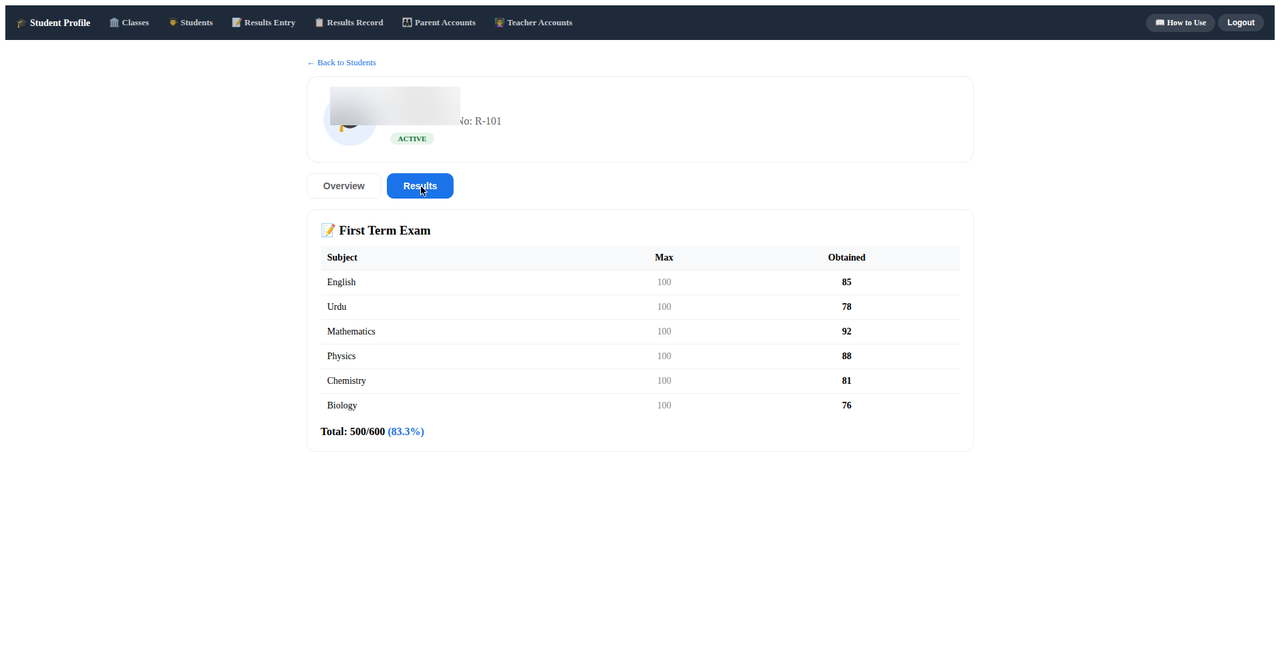
Student view. Pick a student to open their per-exam result cards, full history for that child.

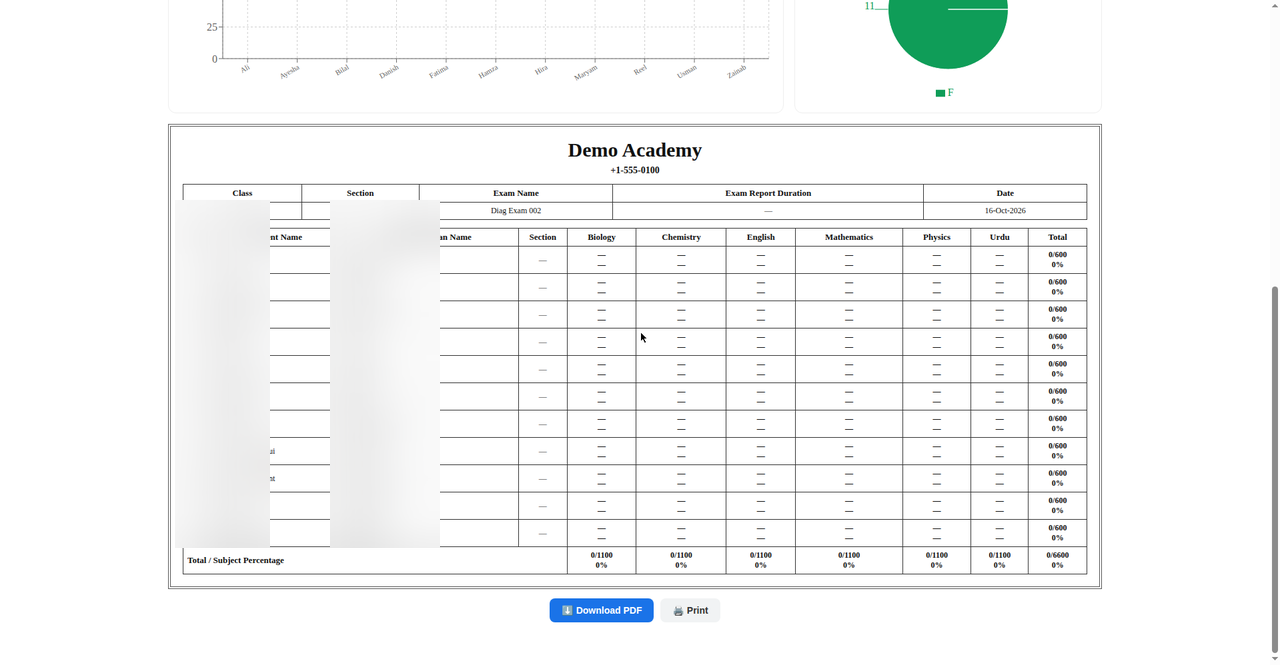
Class view. See per-exam class analysis plus the gazette-style Result Sheet: institute header, class, section, exam and date, then every student with obtained/max marks and percentage per subject, and totals.

Subject view. Pick a subject chip for single-subject analysis across the class.

Download or print. Every result view has Download PDF and Print, printing stages only the result area for a clean page.

7

Gazette Result Sheet

The broadsheet gazette, institute header, every student with subject-wise marks, totals and percentages, ready to download or print.

Gazette-style result sheet in Results Record of Result Sending Software
Results Record, official gazette view with download and print. (Demo data shown, names hidden.)
Chapter 8

Parent Accounts

Parent logins create themselves, the moment a student is added, the parent can sign in. This page manages them.

Automatic creation. The instant a student is saved (single add or CSV import), a parent account is created with an auto-generated email and random password. A one-time popup shows the credentials right then, share them with the parent immediately, for example with the built-in WhatsApp button.

Open Parent Accounts. Sign in as admin and tap Parent Accounts to see every parent's login details.

View credentials. Look up any parent's email and password any time, for example when a parent forgets them.

Reset password. Set a new password in one click when a parent is locked out.

WhatsApp credentials to parent. One tap opens WhatsApp with a pre-filled credentials message, send it straight to the parent.

Print slip. Print a small login slip to hand to the parent at the school office.

Delete. Remove a parent account when needed. Deleted accounts cannot sign in.

8

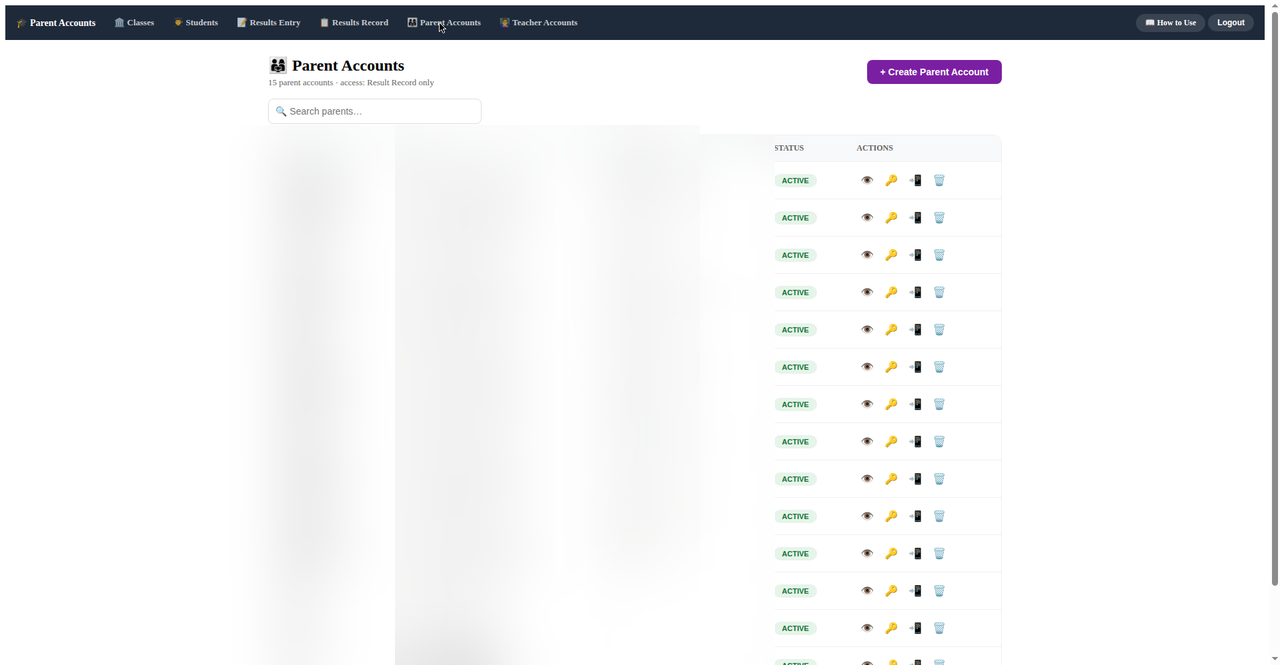
Parent Accounts Page

Every parent's login email, linked student and status in one table, view credentials, reset passwords, or share them on WhatsApp in one tap.

Parent accounts management page in Result Sending Software
Parent Accounts, credentials, resets and WhatsApp sharing. (Demo data shown, names and numbers hidden.)
Chapter 9

Teacher Accounts & Permissions

Create logins for every teacher, and decide exactly which pages each teacher can see.

Open Teacher Accounts. Sign in as admin and tap Teacher Accounts.

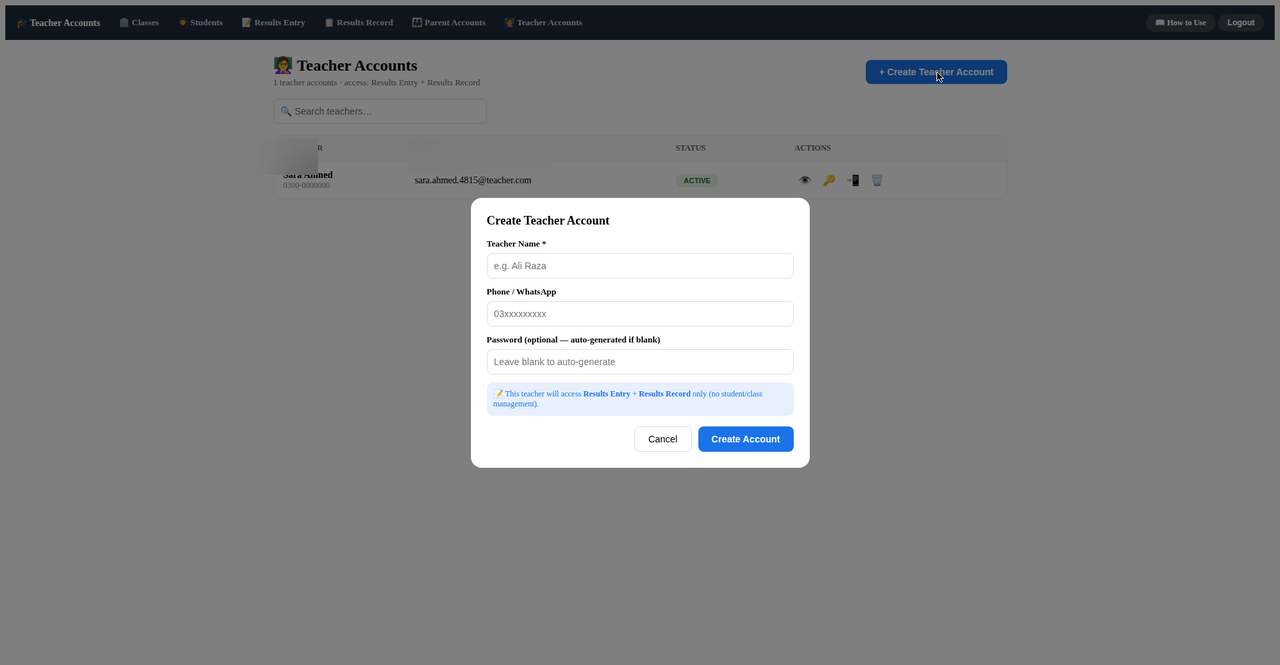
Create a teacher login. Add the teacher's name and an email, a secure password is generated for them.

Set Permissions. Choose which pages this teacher may open, for example Results Entry and Results Record. A teacher only ever sees the pages their admin has enabled.

Manage like parents. View credentials, reset passwords, share logins on WhatsApp, print slips and delete accounts, the same one-click tools as Parent Accounts.

9

Teacher Accounts Page

Create a teacher login in seconds, name, email and page permissions, then manage it with the same one-click tools as parent accounts.

Teacher accounts page with create-teacher dialog in Result Sending Software
Teacher Accounts, create logins and set page permissions. (Demo data shown, details hidden.)

Teachers enter marks on the Results Entry page (Chapter 5) and review them in Results Record (Chapter 7), always limited to what their admin enabled.

Chapter 10

Offline Mode

The internet drops in many schools, especially during exam season. Your work never gets lost.

Keep working with no internet. If the connection drops while entering marks, the software keeps saving locally on that device. Nothing is lost and nothing blocks you.

Watch the badge. A "Waiting for connection (n)" badge counts how many marks are queued and waiting to sync.

Sync on reconnect. The moment the internet is back, queued marks upload automatically. You can also tap the badge to push them through immediately.

Know the rule. Queues are per-device: sync happens on the device that made the saves, and the latest save wins if the same mark was edited twice.

Chapter 11

The Parent Portal

What parents actually see, a simple private page with only their child's results.

Parent signs in. The parent opens result-sending-software.pages.dev/parent-login and signs in with the email and password the school shared.

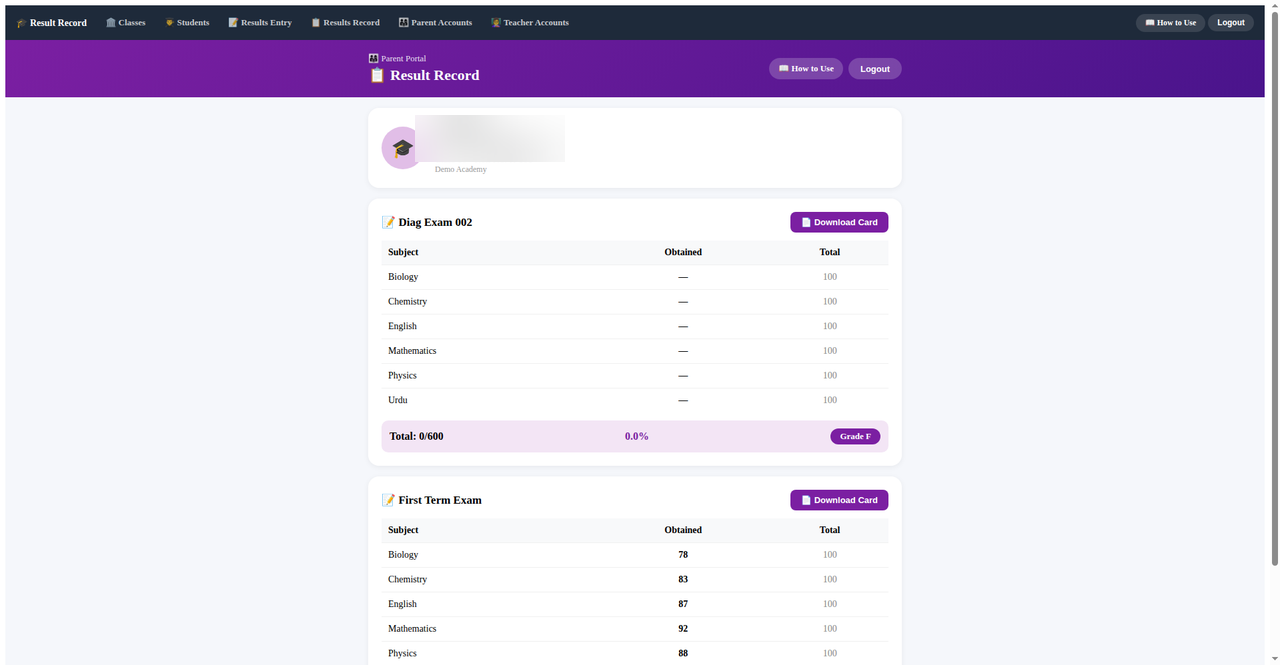
Sees only their own child. The portal lists every published exam with the child's result card, subject-wise marks, total, percentage and grade. No class lists, no other children, ever.

Downloads the card. Parents can view and download the result card any time, months later, on any device.

11

Parent Portal Result View

Parents see a clean result card per exam, subject-wise marks, total, percentage and grade, and can download it any time.

Parent portal showing a child's result card in Result Sending Software
The parent portal, only their own child's results, ever. (Demo data shown, names hidden.)

Privacy is absolute: no screen, message, card, link or notification ever exposes one parent to another child's marks.

Chapter 12

Install on Mobile - Add to Home Screen

Result Sending Software works like a mobile app, no Play Store download needed. Install it on your phone's home screen in under a minute for one-tap access.

Android (Chrome). Open result-sending-software.pages.dev in Chrome, tap the ⋮ menu (top-right), then tap "Add to Home screen" or "Install app". The app icon appears on your home screen, open it like any other app.

iPhone (Safari). Open result-sending-software.pages.dev in Safari, tap the Share button (square with an arrow, bottom of screen), scroll down and tap "Add to Home Screen", then tap Add. The icon appears on your home screen.

Sign in once. Open the installed icon, sign in with your email and password, the app remembers you, so next time it opens straight to your dashboard.

Works offline too. Marks you enter without internet are saved on the phone and sync automatically when you reconnect, a "Waiting for connection" badge shows anything still pending.

Tip: install it on every device you use for results, office computer, personal phone, even a tablet. Your data stays in sync everywhere.

Chapter 13

FAQ & Troubleshooting

Quick answers to the questions schools ask most.

How do schools send exam results to parents?

Teachers enter marks once. The school then sends result cards to every parent in one click via WhatsApp, SMS, a parent app, a secure magic link, or printable PDF, instead of printing slips for students to carry home.

Can parents see only their own child's result?

Yes. Privacy is built in: every parent account shows only their own child's result. Parents never see class-wide marks or other children's data.

Does it calculate totals, percentages and grades automatically?

Yes. Totals and percentages are calculated instantly as marks are entered, and grades follow the school's scheme (90+ A+, 80+ A, 70+ B, 60+ C, 40+ D, below 40 F).

How do parents check results online?

Parents receive the result directly on WhatsApp or SMS, or sign in to the secure parent portal to view and download result cards at any time.

Is there a free demo available?

Yes. Schools can request a free demo over WhatsApp at +92 341 0163165 and see the complete workflow before deciding.

Does it work for any school size?

Yes. The software is multi-tenant and works for small single-campus schools as well as larger institutions with many classes and sections.

I forgot my login password. What should I do?

Staff and teachers: ask your school admin to reset your password from the Teacher Accounts page. Parents: your school admin can reset it from Parent Accounts. A school admin's own password can be reset by us over WhatsApp at +92 341 0163165.

Marks I saved while offline are not showing on another device. Why?

Offline saves queue on the device where they were made and sync automatically when that device reconnects to the internet, a "Waiting for connection (n)" badge shows how many are pending. Open the software on that same device with internet on to let them sync.

A parent did not receive the WhatsApp message. What should I check?

Check that the student's record has the correct parent WhatsApp number on the Students page, then resend for that student only. If the number is correct but messages still do not arrive, use a Magic Link or SMS for that parent instead.

How can a parent open a result if they lost the WhatsApp message?

Parents can sign in to the parent portal any time and download the result card themselves. The school can also generate a fresh Magic Link for that student from the Results Entry page.

Stop Handing Paper Slips to Students

See the complete workflow live, marks entry, automatic result cards, and one-click parent delivery.